
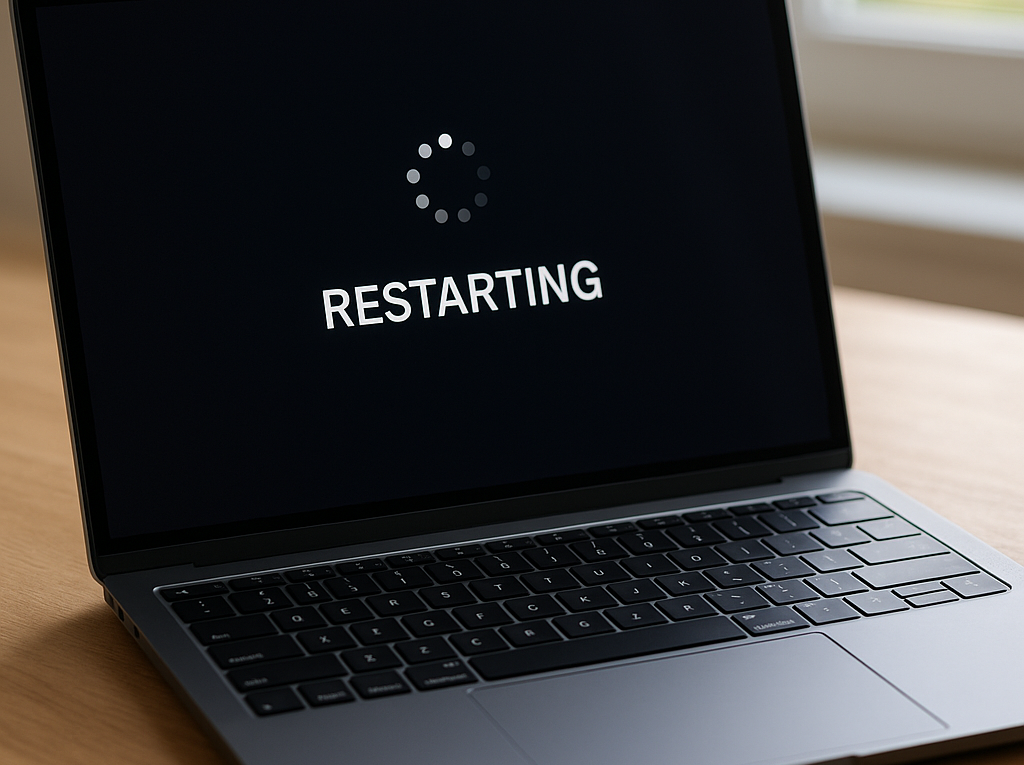
Breaking the Boot Cycle: When Your System Gets stuck on restarting
Few things drain patience faster than watching a machine refuse to finish its boot sequence. The screen blinks, the manufacturer logo appears, and suddenly the whole process resets. This loop drains time and creates unnecessary stress, especially when deadlines loom. Understanding why the cycle begins and how to interrupt it safely makes the difference between a quick fix and a costly repair visit.
Why a laptop stuck on restarting screen happens more often today
Modern operating systems juggle dozens of background services during startup. When a driver fails to initilaize or a recent update leaves the registry in a tangled state, the firmware defaults to a retry protocol. Ten years ago, a simple power cut usually solved the issue. Today, with UEFI architectures and fast NVMe drives, the initialization process runs much faster but leaves less room for error recovery. The system attempts automatic repairs, fails, and triggers the loop again.
Common triggers behind the boot cycle
- Interrupted system updates leaving incomplete files
- Corrupted boot partition or EFI damage
- Driver conflicts from newly installed peripherals
- Overheating components forcing thermal shutdown during POST
| Symptom | Primary Cause | Quick Action |
| Spinning wheel never progresses | Service dependency failure | Force power cycle twice |
| Logo flashes then resets | Corrupt firmware settings | Reset BIOS to defaults |
| Black screen after logo | Display driver crash | Boot into safe environment |
What to do when my laptop is stuck on restarting
Start by disconnecting every external device. USB hubs, docking stations, and even faulty SD cards can interrupt the hardware check sequence. Hold the power button until the indicator lights die, then wait thirty seconds before pressing it again. If the loop persists, tap the interrupt key repeatedly during the manufacturer splash screen to trigger recovery options. Most modern machines now include an automated repair routine that rolls back problematic updates without wiping personal files. This built-in safety net reduces the need for manual command line fixes.
Practical steps when laptop is stuck restarting
Accessing the advanced startup menu opens pathways that bypass the failing service chain. Selecting the option to disable automatic restart on failure reveals the exact error code hidden behind the loop. That code points directly to the corrupted module or hardware mismatch. From there, a targeted rollback or a clean installation usually restores normal operation. Patience matters here. Rushing through recovery menus often leads to deeper configuraton errors.
Modern firmware recovery tools have reduced average resolution time from hours to minutes, but the underlying principle remains unchanged: interrupt the failed sequence, isolate the trigger, and restore baseline configuration.
Hardware checks for a computer stuck on restarting screen
Software fixes cover the majority of cases, yet physical faults occasionally masquerade as boot loops. Failing RAM modules, degraded thermal paste, or loose internal connectors can cause intermittent power loss during the initialization phase. In earlier computing eras, technicians relied on beep codes and jumper settings to diagnose these issues. Contemporary systems log everything internally, but the physical inspection step still matters. Removing the battery (if accessible) and performing a complete discharge clears residual voltage that sometimes traps embedded controllers.
- Reseat memory modules to ensure clean contact points
- Clean cooling vents to prevent thermal throttling during startup
- Verify NVMe seating if recent upgrades occurred
Keeping the operating environment clean and avoiding third-party registry cleaners prevents most startup failures. Regular firmware updates and scheduled maintenance keep the boot sequence predictable. When automatic repair tools fail, a fresh install from external media provides a reliable fallback. The process takes longer upfront but guarantees a stable foundation moving forward. Official recovery documentation offers region-specific troubleshooting paths for users in North America and Europe. Additional guidance on hardware diagnostics can be found through trusted tech publications.
Source: bbc.com